
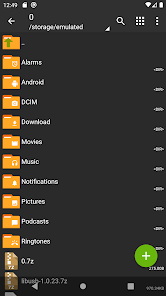

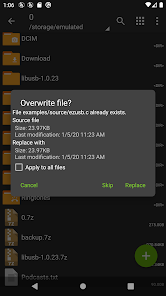
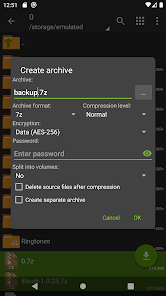


ZArchiver – is a program for archive management (including managing of application backups in archives). You can managment backup of application. It has a simple and functional interface. The app doesn't have permission to access the internet, so cannot transmit any information to other services or persons.
ZArchiver lets you:
– Create the following archive types: 7z (7zip), zip, bzip2 (bz2), gzip (gz), XZ, lz4, tar, zst (zstd);
– Decompress the following archive types: 7z (7zip), zip, rar, rar5, bzip2, gzip, XZ, iso, tar, arj, cab, lzh, lha, lzma, xar, tgz, tbz, Z, deb, rpm, zipx, mtz, chm, dmg, cpio, cramfs, img (fat, ntfs, ubf), wim, ecm, lzip, zst (zstd), egg, alz;
– View archive contents: 7z (7zip), zip, rar, rar5, bzip2, gzip, XZ, iso, tar, arj, cab, lzh, lha, lzma, xar, tgz, tbz, Z, deb, rpm, zipx, mtz, chm, dmg, cpio, cramfs, img (fat, ntfs, ubf), wim, ecm, lzip, zst (zstd), egg, alz;
– Create and decompress password-protected archives;
– Edit archives: add/remove files to/from the archive (zip, 7zip, tar, apk, mtz);
– Create and decompress multi-part archives: 7z, rar (decompress only);
– Install APK and OBB file from backup (archive);
– Partial archive decompression;
– Open compressed files;
– Open an archive file from mail applications;
– Extract split archives: 7z, zip and rar (7z.001, zip.001, part1.rar, z01);
Particular properties:
– Start with Android 9 for small files (<10MB). If possible, use direct opening without extracting to a temporary folder;
– Multithreading support (useful for multicore processors);
– UTF-8/UTF-16 support for filenames allows you to use national symbols in filenames.
ATTENTION! Any useful ideas or wishes are welcome. You can send them by email or just leave a comment here.
Mini FAQ:
Q: What password?
A: The contents of some archives may be encrypted and the archive can only be opened with the password (don't use the phone password!).
Q: The program is not working correctly?
A: Send me an email with detailed description of the problem.
Q: How to compress files?
A: Select all the files you want to compress by clicking on icons (from the left of filenames). Click on the first of selected files and choose "Compress" from menu. Set desired options and press the OK button.
Q: How to extract files?
A: Click on the archive name and select suitable options ("Extract Here" or other).

What's new
- added SUI support;
- added E-Ink theme;
- added drag and drop file in or out from ZA;
- other fixes and improvements.